Step-by-Step Guide

Create Your Professional
Business Profile

Follow this simple guide to create your digital business profile on Profily. Showcase your products, services, and grow your business online.

Watch Tutorial View Steps

Video Tutorial

Learn how to create your business profile on Profily
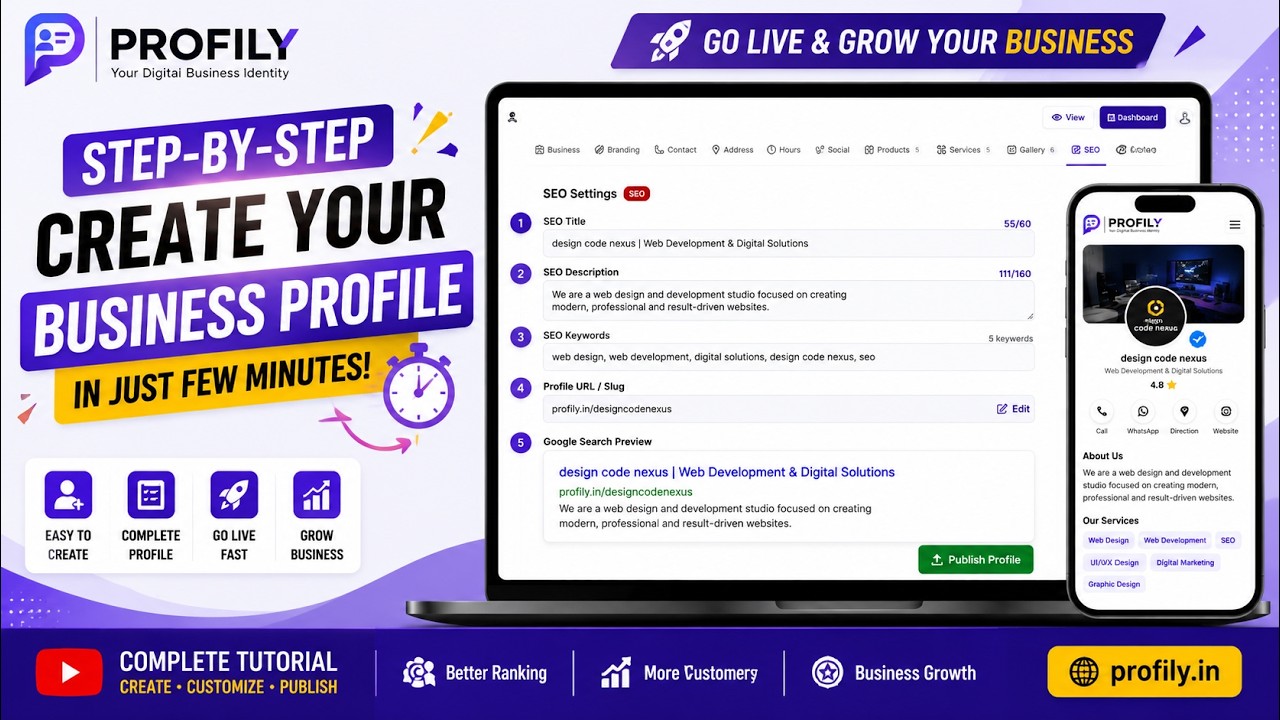
Video Tutorial
Watch Now

Apni Profile Create Karna Sikhe

Is video mein hum aapko Profily par apna business profile banane ka tarika step-by-step sikhayenge.

Watch Full Tutorial

Step-by-Step Guide

Follow these 7 simple steps to create your complete business profile

1

Step 1: Sign Up / Login

Getting Started

First, you need to create an account or login to your existing account on Profily.

  • Click on "Get Started" or "Login" button
  • Fill your basic details (Name, Email, Mobile)
  • Verify your email/phone (OTP verification)
  • You're now ready to create your profile!
✅ Account created successfully - Now you can start building your profile.
2

Step 2: Business Information

Tab: Business

Fill in your business details to create your digital identity on Profily. All fields are mandatory.

  • Business Name - Your brand name (auto-filled from registration)
  • Owner Name - Who runs the business (full name)
  • Business Category - Choose from 80+ categories or type custom
  • Business Description - Tell people about your business (compulsory)
  • Business Since - Year established (optional)
  • GST Number - If you have one (optional)
💡 Tip: Write a clear and detailed business description - this helps customers understand what you offer.
3

Step 3: Branding & Visual Identity

Tab: Branding

Make your profile visually appealing with images and branding. Logo and Cover are mandatory.

  • Business Logo - Square image, recommended 200×200px (compulsory)
  • Cover Banner - 1600×400px recommended (compulsory)
  • Theme Color - Choose your brand color
  • Gradient Colors - Two colors with angle for premium look (optional)
  • Gradient Presets - Quick pick from 12 ready-made gradients
🎨 Good branding builds trust! Upload a professional logo and cover image.
4

Step 4: Contact & Address

Tabs: Contact + Address

Add your contact details and physical location so customers can reach you. All fields are optional.

  • WhatsApp Number - Direct WhatsApp button on profile
  • Street Address - Full street address
  • Area / Locality - Local area name
  • City, District, State, Country, Pincode - Complete location
  • Google Map Location - Paste embed URL for map
📍 Customers trust businesses with a physical address. Fill in complete address details.
5

Step 5: Working Hours & Social Links

Tabs: Hours + Social

Let customers know when you're open and connect with them on social media. All fields are optional.

  • Working Hours - Set open/close time for each day
  • Holiday - Mark any day as holiday
  • Facebook, Instagram, YouTube, LinkedIn, X (Twitter) - Add social profiles
🌐 Social media links help customers connect with you on their favorite platforms.
6

Step 6: Products, Services & Gallery

Tabs: Products + Services + Gallery

Showcase what you offer to your customers. All sections are optional and can be added later.

  • Products - Add name, category, price, offer price, description, image, features
  • Services - Add name, description, icon, image
  • Gallery - Upload images to showcase your work
  • Product Section Heading - Custom heading above products
  • Limit Check - Plan determines how many items you can add
💡 You can add products, services, and gallery images later. Don't feel pressured to add everything at once!
7

Step 7: Why Choose, Highlights, SEO & Publish

Tabs: Why Choose + Highlights + SEO

Add trust signals, optimize for search engines, and publish your profile.

  • Why Choose Us - Add up to 6 reasons with icon, title, description
  • Business Highlights - Add verifications like "FSSAI Verified", "ISO Certified"
  • SEO Title - 50-60 characters, appears in Google search results
  • SEO Description - 150-160 characters, appears under title in search
  • SEO Keywords - Comma separated keywords (optional)
  • Profile URL / Slug - Customize your profile link
🚀 After filling all tabs, click "Publish Profile" to go live! You can always edit later.
📌

SEO Tab - What to Fill?

Important for Google Ranking

SEO (Search Engine Optimization) helps your profile rank in Google search results.

  • SEO Title - This is the clickable headline in Google search. Example: "Your Business Name | Best Products/Services in Your City" (50-60 chars)
  • SEO Description - This is the short description under the title in Google. Example: "Your Business Name is a trusted provider of high-quality products and services. Visit us to learn more about our offerings." (150-160 chars)
  • SEO Keywords - Comma separated keywords like: "your business, products, services, city name, industry" (optional)
  • Profile URL / Slug - Your profile link. Example: profily.in/your-business-name (only lowercase, numbers, hyphens)
💡 Leave SEO Title and Description blank - they auto-generate from your business info! Only fill if you want to customize.
👀 Preview shows exactly how your profile will look in Google search results.

What You'll Get

Every Profily profile comes with these powerful features

QR Code

Unique QR code for your profile. Scan to view instantly.

Easy Sharing

Share your profile link anywhere - WhatsApp, Instagram, Facebook.

Products & Services

Showcase unlimited products and services with images.

Customer Reviews

Collect and display customer reviews with ratings.

Inquiry System

Customers can send inquiries directly from your profile.

WhatsApp Integration

Direct WhatsApp button for instant customer communication.

Gallery

Showcase your work with a beautiful gallery section.

Analytics

Track profile views and customer engagement.

Frequently Asked Questions

Common questions about creating and managing your profile

Creating a basic profile takes about 5-10 minutes. Adding products, services, and gallery images may take additional time depending on how much content you have. You can always come back later to add more details.
Yes! You can edit your profile anytime. Just go to your dashboard and click on "Edit Profile". All changes are updated instantly on your live profile.
Yes, once published, your profile is publicly visible. You can share your profile link anywhere. All your contact information and business details will be visible to visitors.
Currently, each user account can create one business profile. If you have multiple businesses, you can create separate accounts for each business.
Your QR Code is automatically generated when you publish your profile. You can find it on your profile page and dashboard. You can download it and use it anywhere.
You can upgrade your plan anytime from the "Pricing" page or from your dashboard by clicking "Upgrade Plan". Choose a plan that suits your business needs.
SEO tab is for optimizing your profile for Google search. SEO Title is the clickable headline (50-60 chars). SEO Description is the short text below it (150-160 chars). SEO Keywords are comma separated (optional). Profile URL / Slug is your custom profile link. Leave SEO Title and Description blank to auto-generate from your business info.

Ready to Create Your Profile?

Join 3,000+ businesses already growing with Profily. It's free and easy to get started.

Create Your Profile See Live Profiles